Steam Cloud is great when a game has it. Plenty don’t, including a lot of the older games I play on the Deck. I already run Syncthing on the Deck and my PC, but adding a game meant going to Desktop Mode, finding the save folder somewhere inside a Proton prefix, and setting up the share by hand in Syncthing’s web UI. For every game.
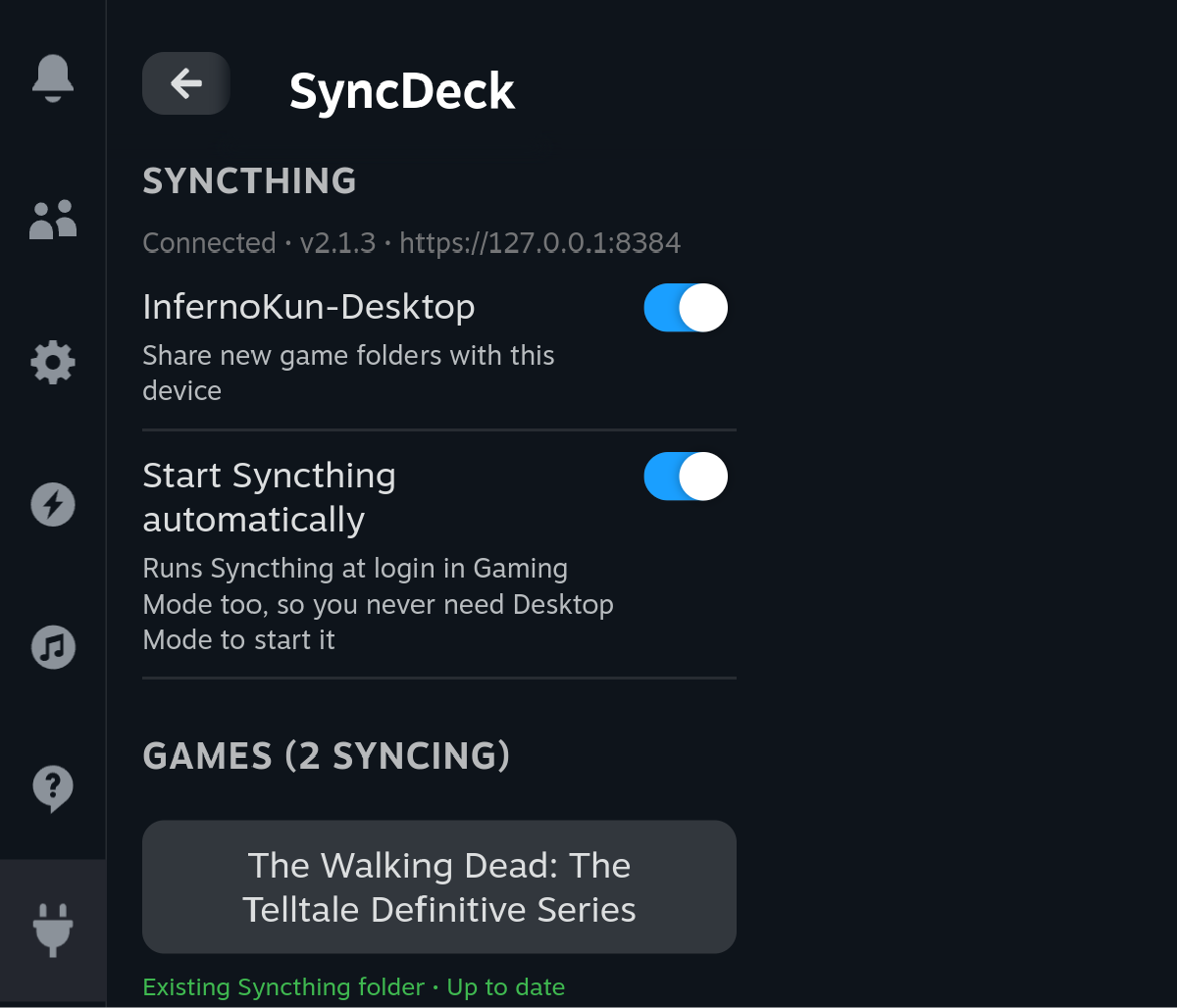
SyncDeck does that from the Quick Access Menu.
What it does#
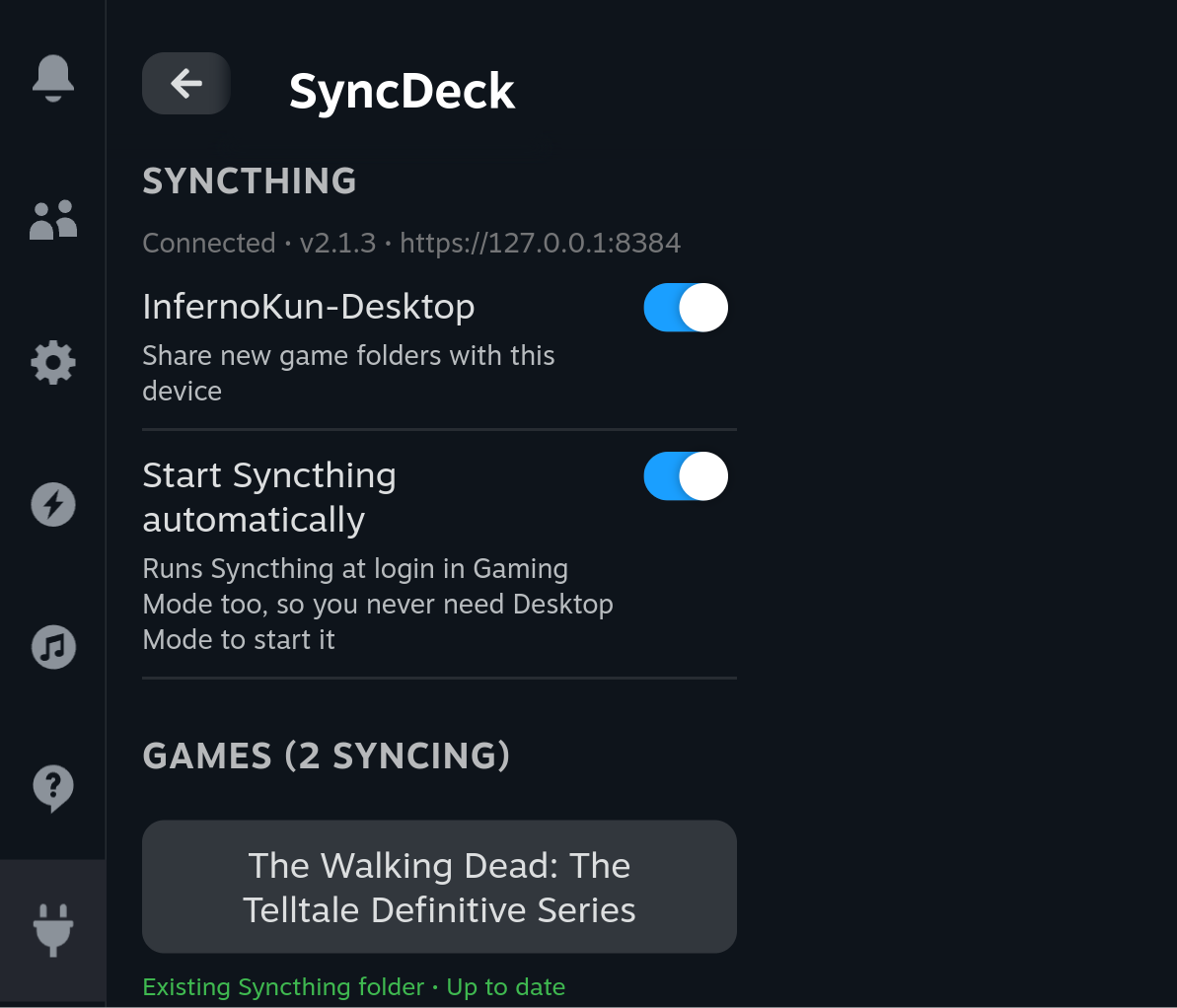
- Lists the installed Steam games, across every library including SD cards, by reading Steam’s
appmanifestfiles. - Finds where each game keeps its saves and shows the best match. It looks in the Proton prefix (
Saved Games,Documents/My Games, publisher folders underAppData), the Linux XDG folders, andsave/folders inside the install. You confirm before anything is created. - Creates the Syncthing folder, shares it with the devices you pick, and turns on versioning so a bad sync can be undone.
- Shows each game’s state: up to date, syncing, scanning, waiting for the PC to accept, paused, or an error.
- Picks up Syncthing folders you made by hand and shows them as synced, without ever deleting them.
- Can install a user systemd unit so Syncthing starts at login, even in Gaming Mode.
Games that already have Steam Cloud are hidden by default, since Steam handles those.
The PC side#
By default, adding a game makes the PC’s Syncthing show a “the Deck wants to share a folder” notice, and you accept it there. While it waits, SyncDeck shows the matching Windows path so you know where to point it.
There’s also an optional mode where SyncDeck creates the folder on the PC itself through Syncthing’s REST API, in the right place:
Proton prefix saves
Go to the same place in your Windows profile, like ~\Documents\My Games\.... If the game is installed on the PC too, the two merge.
Saves in the install folder
Go to the game's real install folder on the PC. SyncDeck finds it by checking the PC's usual Steam library locations.
Everything else
Anything with no Windows equivalent goes under ~\SyncDeck\<Game> as a backup.
That mode needs the PC’s Syncthing API key, and typing a 32-character key on the Deck’s on-screen keyboard is miserable. So you can drop the key into a text file in any folder the Deck already syncs. It arrives on the Deck by itself, and one button reads it in and deletes the file.
Building it#
Decky plugins have a Python backend and a React front end in TypeScript. The backend does all the file system and Syncthing work. The front end is the panel in the screenshot.
The first public release was 1.0.0 on September 16. Most of what followed came from actually using it: SD card awareness, relocating a folder when a game’s saves move, forgetting games that are gone, and the PC auto-add mode. It’s at 1.4.2 now, with CI and a release workflow on GitHub.